
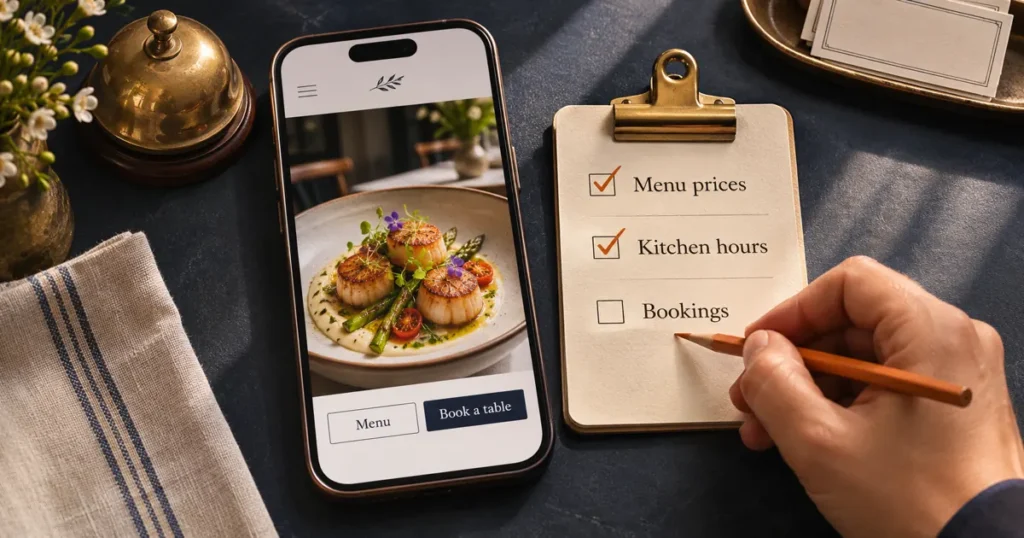
Pick a dish you’re serving this week. Open your website on your phone and imagine someone recommended that dish to you. Can you find the price, tell whether it’s on the lunch or dinner menu, and work out how to get a table?
Try the same exercise with someone who has never visited. You know that “The Kitchen” in your navigation means the menu. A first-time guest might read it as a story about the chef. Watch where they tap before offering to help. That first hesitation gives you something specific to investigate.
Use this restaurant website checklist before launch, when you change a menu or booking provider, or when the team keeps answering a question the website should already cover.
The shift manager’s quick checklist
On a phone, start from the link a guest would use. Give each task a tick, a cross or “not offered”. Keep the failed tasks for the handover log below.
- Find the menu and the main action from the homepage.
- Match a dish, price and serving time to today’s menu.
- Check whether the kitchen will serve a guest arriving late.
- Follow a booking through to the correct branch.
- Start a pickup or delivery order and confirm the venue.
- Get directions to the entrance guests actually use.
- Answer one question staff regularly hear before a visit.
- Trace the last menu or hours change across public pages.
1. Start with the first decision a guest needs to make
Open the homepage on mobile data. Imagine a colleague has sent you the link with the message “Lunch here tomorrow?” Without scrolling past the introductory photograph, see what you can learn about the food, the location and how to view the menu.
Now choose the main action for your type of restaurant. A neighbourhood takeaway might lead with “Order for pickup.” A reservation-led dining room might lead with “Book a table.” For a walk-in café, today’s hours and directions may do more for the guest than either button. Give that action a specific label and try it with one hand. Check whether a cookie notice, chat bubble or promotion covers it.
If the menu is slow to appear, enter the menu page’s own URL in PageSpeed Insights and share the mobile report with whoever maintains the site. For a separate check, try reaching “Book a table” on a computer using only the keyboard. Can you see which control is selected and open it with Enter? If you lose your place, start with W3C’s introductory accessibility checks.
Pass when a first-time visitor can describe the restaurant and take the relevant next step without help. If they miss the button, record what they tapped instead. That tells you more than a general note to “improve mobile.”
2. Read the menu your team is actually serving
Put today’s printed menu or till listing beside your phone. Choose a signature dish, a recently changed item and a special with limited availability. Compare their names, prices and service times. A seasonal dish still displayed on the homepage is worth checking even if the menu page itself is correct.
A menu written as text on the page lets guests enlarge the type and move between sections. A printable PDF can be useful too. Test what happens when someone taps “Menu” on a small screen. If they land on an image of two densely printed pages, try reading the sides and supplements as well as the main dishes.
Pass when someone can find a dish, read its price and tell when it is available without staff interpreting the menu for them. If Google still lists the previous menu, follow the steps to update your restaurant menu on Google.
3. Check opening hours against the last kitchen order
If the bar closes at ten and the kitchen takes its last order at nine, ask someone whether they could eat at 9:15. “Open until 10 pm” gives a reasonable guest the wrong impression. A short line beside the hours can answer the question before they make the journey.
Check a second edge case that applies to your business. Perhaps Sunday brunch ends before dinner begins, pickup closes earlier than dine-in service, or a holiday changes the usual opening time. Look at the footer as well as the hours page. An old set of hours repeated across the site can contradict the one your manager just corrected.
Pass when the guest can answer “Can I eat or collect an order at that time?” for a particular day and location.
4. Follow the reservation through to the correct dining room
Start with “Book a table” and follow the handoff to your booking provider. Select a date and party size. Check the restaurant name, branch and service shown on the next screen. A working button can still take guests to the wrong place, particularly after a second branch opens or a provider changes.
Try a fully booked evening too. Is there a useful next step, such as choosing another time or joining a waitlist you actually monitor? Reaching the provider’s page confirms the link works. To check that a completed reservation reaches the host, use the booking test in the FAQ below.
Pass when the guest knows where they are booking and how to recognise a confirmed table. If you accept walk-ins only, clear arrival instructions are enough to pass this check.
5. Test online ordering for pickup and delivery
Choose a dish from the website and follow the ordering link. Try pickup first. Can you see the collection address and available time before spending several minutes filling a basket? If you deliver, repeat the test with one address inside your delivery area and one just outside it.
Watch for details that change at the handoff. An ordering platform may show a different menu for collection, add a charge or remember a branch from a previous visit. Where prices or availability legitimately differ, give guests enough context to make their choice. You can check the basket without placing a paid order. After changing providers, arrange a test order with the shift lead using the provider’s test mode if available. Ask the team at the selected branch to confirm the dish, pickup time and order reference they received.
Pass when the guest can see which branch will prepare the order, how they’ll receive it and what they’ll pay. Record “checkout checked” and “order received by branch” separately so the next shift knows how far you tested. Mark this check “not applicable” if you offer no online ordering.
6. Get directions to the entrance
Open the site from the venue’s Google Maps listing, then follow the website’s directions link back to the map. For a restaurant group, start with a branch other than the flagship. Notice whether you stay with that branch when you open the menu, call or book.
The street address may be accurate and still leave a guest at the wrong door. If your dining room is upstairs, your entrance is on a side street or collection is around the corner, add the detail your team usually gives over the phone. A current entrance photo may help more than another dining room photograph.
Pass when a guest can identify the branch, reach the right entrance and call the people who work there.
7. Answer a question your team heard this week
Ask whoever answered the phone last Saturday which question came up twice. It might concern step-free entry, space for a pram, group bookings or whether the set lunch runs on bank holidays. Use the guest’s own wording to test the site.
Put the answer beside the decision it affects. A note about parties of eight belongs beside reservations. Step-free entrance details belong with directions. For an allergy enquiry, give guests a clear route to someone who can confirm current dish information. On the website, make the phone number easy to use and say when someone can answer.
Pass when the guest finds a specific answer or reaches the right person. Keep a note of repeated questions for a week after the edit. If the calls continue, ask where guests looked first.
8. Trace the last change from the kitchen to the customer
Choose something that actually changed recently. Ask the colleague responsible to show you every place the old information appeared. A revised Sunday lunch price might touch the printed menu, the website, a booking offer and the menu linked from Google. Searching only the menu page will miss an old price in a homepage promotion.
Write down who can change each version, including any listing or ordering page managed by a provider. Then open the public pages on your phone. Checking the saved version in the editor misses what customers can still see.
Pass when the team can name the person responsible, show you the corrected public information and repeat the process at the next change.
Decide what to fix first
Start with errors that send a guest to the wrong venue, accept an order for the wrong service or prevent a booking. Next, handle information that leaves people uncertain about price, availability or access. Cosmetic changes can wait while a guest is still being sent to a closed kitchen.
A handover note your team can copy
Record one failed check per note. Here’s what that looks like for a restaurant with two branches.
- Problem and guest impact — On Riverside’s lunch page, “Book a table” opens Central’s diary. A guest could reserve at the wrong branch.
- Person responsible — The website manager will replace the link before Tuesday lunch.
- Retest — Start on Riverside’s lunch page on a phone. Select a Tuesday table and check the branch shown on the booking screen.
- Result, date and initials — Leave this open until a second person has tried the corrected link.
For the next issue, copy these four lines into your shift notes:
- Problem and guest impact —
- Person responsible —
- Retest —
- Result, date and initials —
Frequently asked questions about restaurant websites
How often should we check our restaurant website?
Retest the affected pages whenever you change a menu, hours, location or provider. For example, before publishing a holiday lunch offer, follow its link from the homepage to the menu and try booking for the advertised date. As a starting routine, give the full checklist to a different team member once a month. Someone unfamiliar with the setup is more likely to notice where guests have to guess.
Can a small restaurant keep everything on one page?
Yes. A single-location café can put its menu, hours, address and walk-in policy on one page. Give each section a clear heading and let visitors jump straight to the menu. A second page earns its place when it helps guests make a different decision, such as choosing between two venues with different opening times.
How can we tell whether online bookings actually reach the host?
Arrange one test with the host during a quiet shift. Record the branch, date, party size and time, then ask the host to locate that exact reservation in the diary. Check the guest confirmation as well and release the table afterwards. If the guest receives confirmation but the host cannot see the reservation, give the booking provider the reference and both sets of details.
Does one failed check mean we need a redesign?
An outdated price usually calls for a content edit and a named owner. If a shared booking button sends guests to the wrong branch, or staff need a developer every time the lunch menu changes, the underlying structure deserves attention. Those are useful requirements to take into a conversation about restaurant website design.
What if the site passes but few guests find it?
First compare the public website with the information guests see in Search and Maps. Google recommends keeping details such as your address and special hours current in its guidance on local search results. To investigate visibility yourself, work through the restaurant SEO audit. If several venues need coordinated work on their profiles and local pages, Gadget Majesty’s local SEO services explain what that support covers.